HomeUser Guide › Away from home
Away from home

The same app, a different route

Syno Manager works the same whether you are next to your NAS or on the other side of the world. What changes is how the connection gets there, and each route has different trade-offs worth knowing.
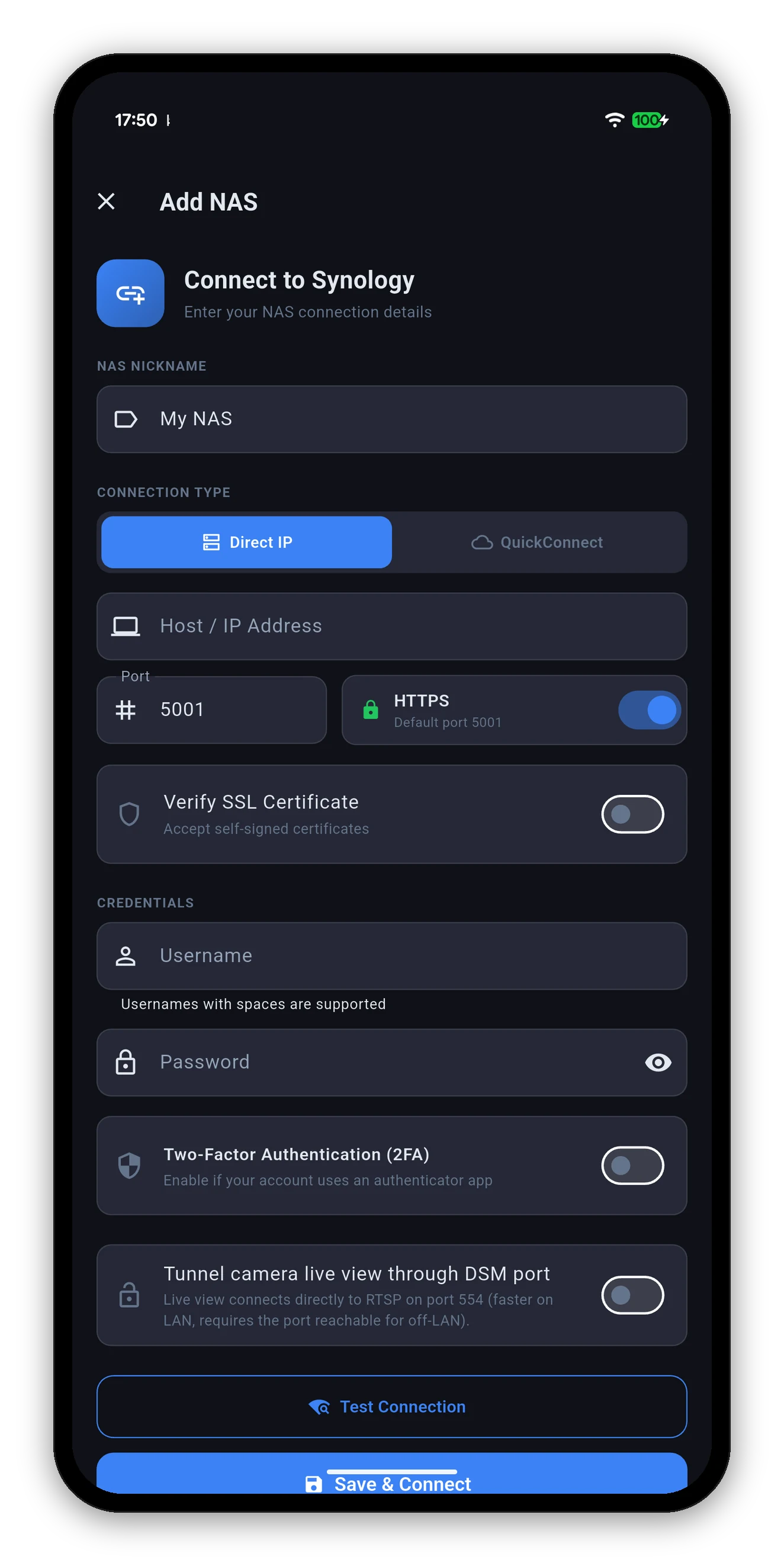
The Add NAS form showing Direct IP and QuickConnect
Three routes

Pick the one that fits

RouteSetupSpeedExposes anything?
QuickConnectEnable it in DSM and enter the ID. Nothing on the router.Slower - traffic goes via Synology's relay.Nothing. No open ports on your side.
Custom domain / DDNSA hostname pointing at your address, plus a port forward on the router.Direct, so as fast as your upload allows.Yes - the DSM port is reachable from the internet.
VPNA VPN server on your router or NAS, and a client on the phone.Direct once connected.Only the VPN port. Everything else stays private.
If you are unsure, use QuickConnect. It is the option that requires no router knowledge and opens nothing, and every feature in the app works over it.
What works remotely

Everything, with two footnotes

The app does not have a reduced feature set when you are away. The two things that need a moment's thought are camera live view and waking a NAS that is off.

FeatureAway from home
Monitoring - system, storage, network, healthWorks on any route.
Docker, packages, services, tasks, usersWorks on any route.
Synology Photos - thumbnails and full imagesWorks, relay included.
File Station and Drive downloadsWorks, relay included.
Backups - status and Run NowWorks on any route.
Waking another device through the NASWorks, as long as the NAS itself is on.
Camera live viewTurn on Tunnel camera live view through DSM port. Without it, live view wants RTSP on port 554, which is usually not reachable from outside. See how live view connects.
Waking the NAS itself while it is offNeeds a VPN or a router Wake-on-LAN forward. QuickConnect cannot reach a NAS that is off. See Wake-on-LAN.
QuickConnect

Setting it up

  1. In DSM: Control Panel › External Access › QuickConnect. Enable it and note the QuickConnect ID.
  2. In the app: add a NAS and switch Connection Type to QuickConnect.
  3. Enter the ID - not a host and port.
  4. Your DSM credentials, and 2FA if the account uses it.
  5. Save & Connect.
Expect it to be slower. The relay adds a hop and Synology rate-limits it, so a photo library scrolls less smoothly than it does at home. Everything still works - it is a latency difference, not a capability one.
A pattern worth copying

Add the same NAS twice

One entry by local IP, one by QuickConnect. Name them so you can tell them apart - "NAS (home)" and "NAS (away)".

Set Launch Behavior to Last NAS I used and the app will keep whichever you were on.
Common questions

Remote access FAQ

Do I need to forward ports to use my NAS remotely?
No. QuickConnect relays the connection without any router configuration, and a VPN works too. Port forwarding is only needed if you specifically want a direct route from the internet.
Do photos and camera live view work over QuickConnect?
Yes. Thumbnails, full images, camera live view, and File Station and Drive downloads all go over whatever route is active, relay included. Camera live view needs the DSM-port tunnel toggle on.
Should I add my NAS twice?
It is a good pattern - one entry by local IP for home and one by QuickConnect for away, with separate layouts and one-tap switching.
Is QuickConnect secure?
The connection is encrypted end to end when you use HTTPS, and the relay passes traffic through rather than holding your data. Your DSM credentials and two-factor authentication still apply.
Why is my local-IP entry not working on mobile data?
Because a private address like 192.168.x.x only exists on your own network. Use the QuickConnect entry, a domain, or connect to your VPN first.

Next: backup & restore

Move your app settings to a new phone.

Backup & restore →   Back to the guide