HomeUser Guide › Wake-on-LAN
Wake-on-LAN

Turn things on from the sofa

A Wake button next to Connect in the device list for the NAS itself, and a Wake devices screen for everything else on your network. One of those works from anywhere; the other has an honest caveat.
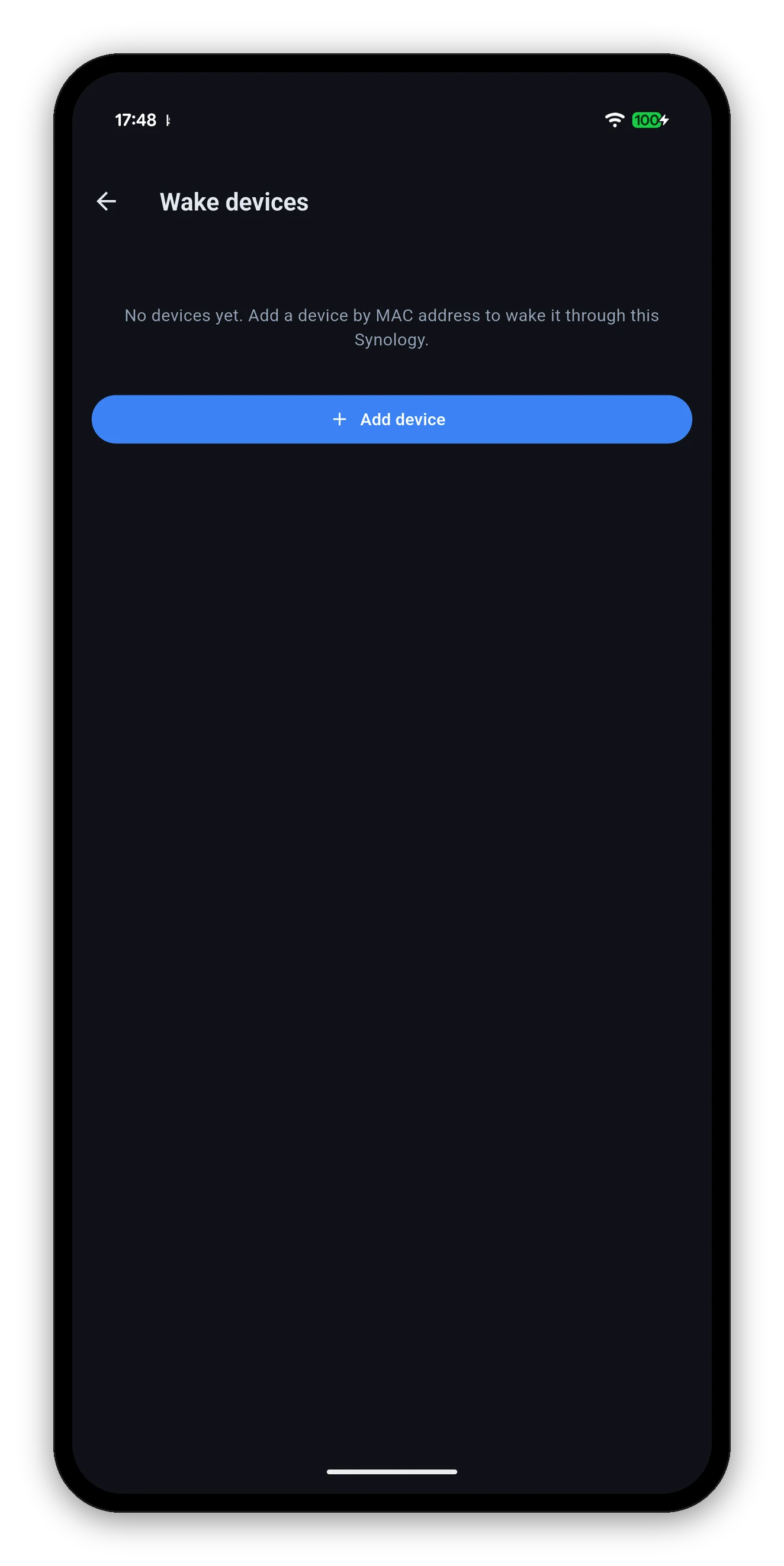
The Wake devices screen
The honest table

What works from where

Wake-on-LAN is a broadcast on a local network. Everything about what does and does not work follows from that one fact, so here it is plainly rather than buried in a footnote.

What you want to wakeWhere you areWorks?Why
The NASOn the same networkYesYour phone broadcasts the packet directly. Nothing to set up.
Another deviceOn the same networkYesSame - either your phone or the NAS can send it.
Another device, NAS is onAnywhereYesThe NAS relays it for you. You reach the NAS over your normal connection and it broadcasts on the LAN. This is the DS Router path.
The NAS itself, while it is offOutside your networkNeeds setupA powered-off NAS cannot relay its own wake, and QuickConnect cannot reach a NAS that is off. You need a VPN into the network, or a router forwarding UDP port 9 to the LAN broadcast address.
The middle row is the useful one. Waking a desktop at home from a train works, and needs no router configuration at all - because the always-on NAS is doing the broadcasting.
The NAS

Waking your DiskStation

  1. Nothing to configure. The app captures the NAS's MAC address the first time you connect, so the button is ready before you need it.
  2. Open Settings › Manage NAS Devices.
  3. Tap Wake next to the NAS.
  4. Give it a moment and tap Connect. A NAS takes a while to boot, and the app will not pretend it is up before it answers.
Wake-on-LAN has to be enabled on the NAS too. DSM, under Control Panel › Hardware & Power › General. A NAS with it switched off will ignore the packet no matter who sends it.
Everything else

Waking other devices through the NAS

Settings › Wake devices. Add any machine on your network by name and MAC address, and the NAS sends the magic packet for you from inside the network.

  1. Tap Add device.
  2. Give it a name you will recognise - "Desktop", "Games PC", "Server".
  3. Enter its MAC address. Your router's device list is usually the easiest place to find it.
  4. Save. It appears in the list with its own Wake button.
Because the NAS does the sending, this works while you are away - over mobile data, over QuickConnect, from anywhere you can reach the NAS. That is the same way Synology's own router app does it, and it is why this is worth setting up even if you never wake the NAS itself.
The Wake devices screen with the empty state and an Add device button
On the target machine

What has to be true for a wake to land

If a packet is sent and nothing happens, it is almost always one of these - none of which the app can see or fix from outside.

Common questions

Wake-on-LAN FAQ

Can I wake my NAS from anywhere?
Only if there is a route to your network that does not depend on the NAS being awake - a VPN, or a router configured to forward Wake-on-LAN. A powered-off NAS cannot relay its own wake packet, and QuickConnect cannot reach a NAS that is off. On the same network it just works.
Can I wake my PC through the NAS?
Yes, and this does work from anywhere as long as the NAS itself is on. You ask the NAS over your normal connection and it broadcasts the magic packet on the LAN for you.
Where does the NAS's MAC address come from?
The app captures it automatically the first time you connect, so you never have to look it up.
What do I need to add another device?
A name you will recognise and its MAC address, which is usually in your router's device list.
I sent a wake and nothing happened.
Check Wake-on-LAN is enabled on the target machine - in its BIOS, on its network adapter, and with Windows Fast Startup off. Also check it is on wired Ethernet, and that the NAS has Wake-on-LAN enabled in Control Panel if it is the NAS you are waking.

Next: widgets

Your NAS on the home screen, with an honest timestamp.
Home screen widgets →   Back to the guide