Cards, tabs, sub-views and collapse state. Every one of them can be reordered or switched off, every one is remembered between launches, and every one can be reset.
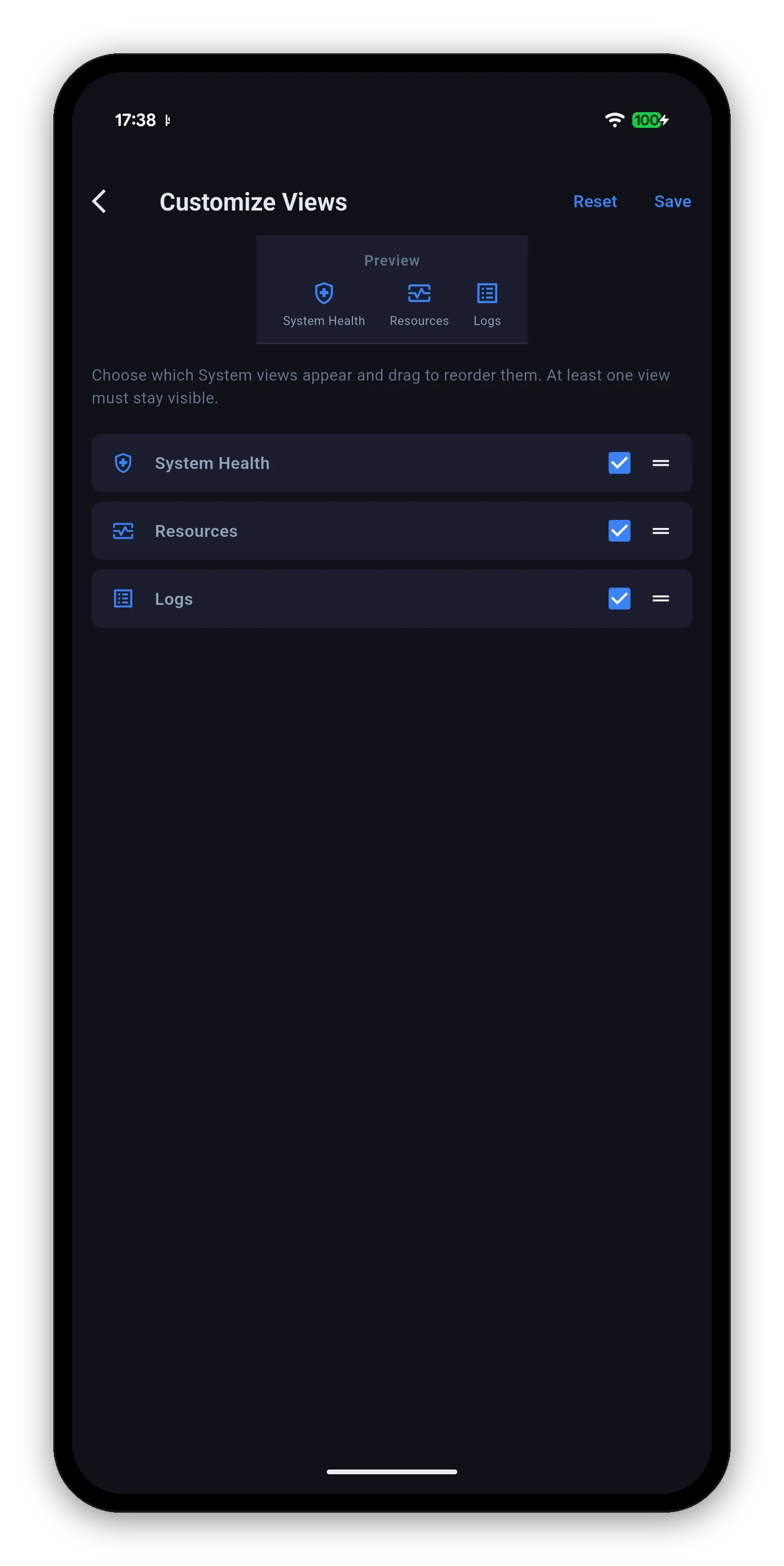
| Layer | Where | Stored |
|---|---|---|
| Dashboard cards | The pencil on the home screen, or Settings › Dashboard Categories | Per NAS |
| Bottom navigation bar | Settings › Customize Navigation | App-wide |
| Sub-views inside a tab | The tab's ⋮ menu › Customize views | Per NAS |
| Collapsed or expanded | The chevron on any card, with the default in Settings › Default Card View | Per NAS |
| Help cards | Dismiss on the card; restore in Settings › Help | App-wide |
Every tab with more than one section has a ⋮ menu at the top right, and Customize views in it.
Hiding things creates a trap: a dashboard card whose screen you have hidden. Tap it, and where does it go?
It used to go to whatever that tab's first section happened to be - so hiding Disk Health and then tapping the Disk Health card landed you on Volumes & Pools, with no explanation. That reads as a broken app.
Now the card tells you. If the view is hidden it says so and offers a Customize button that takes you straight to the setting that would bring it back. If your NAS does not run the service at all, it says that instead - a different problem with a different answer, and the app does not confuse the two.
QuickConnect, domains, VPNs, and which features work over which route.
 Syno Manager