Home › User Guide › Search
Search

Type it, land on it

Your Synology NAS is packed with features and nobody remembers where they all live. Type what you want, in your own language or in English, and Syno Manager opens the setting or page that holds it.
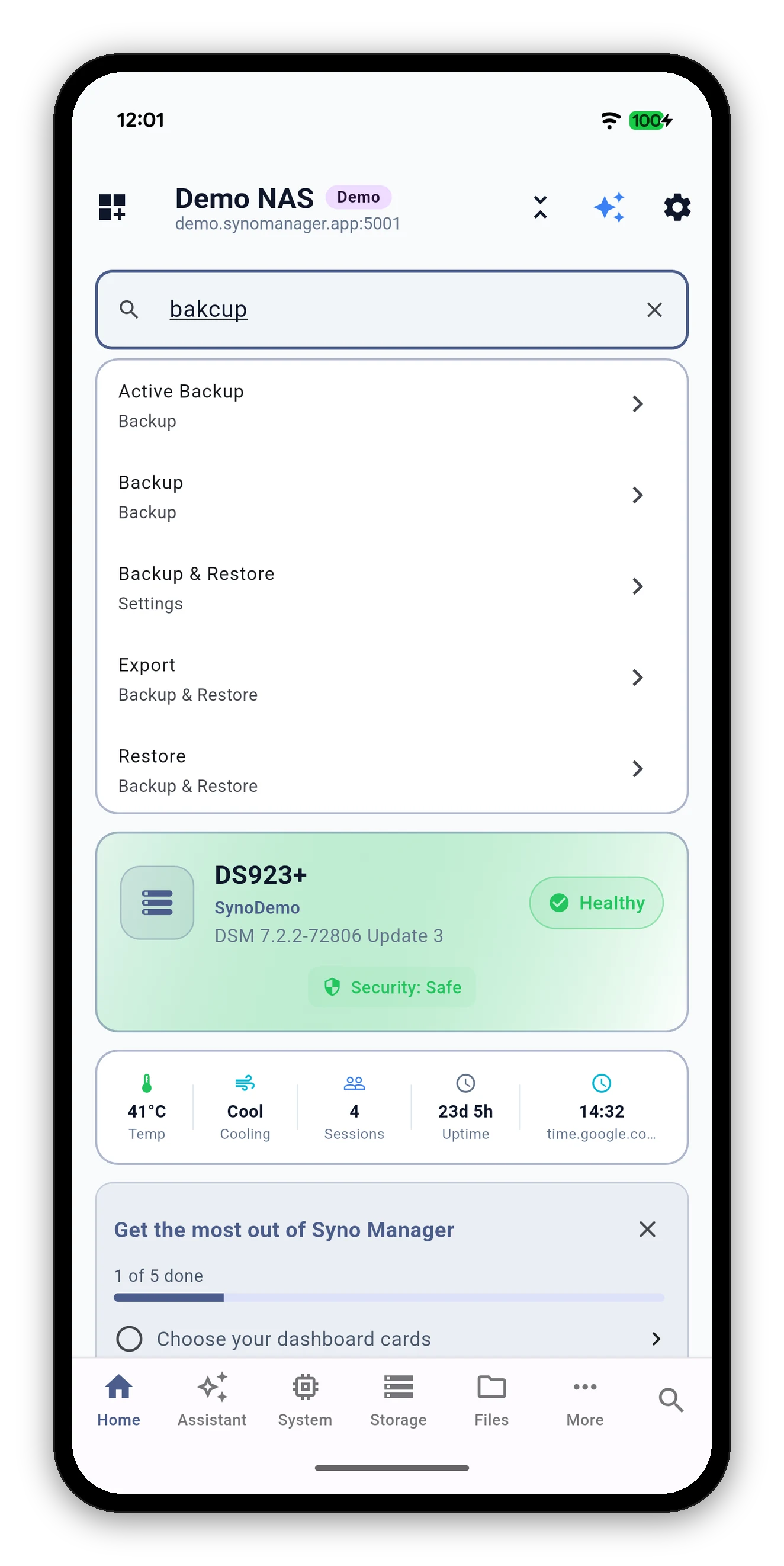
Search results for a misspelled word listing Backup, Active Backup and Restore
Two ways in

Search is always one tap away

WhereWhat you do
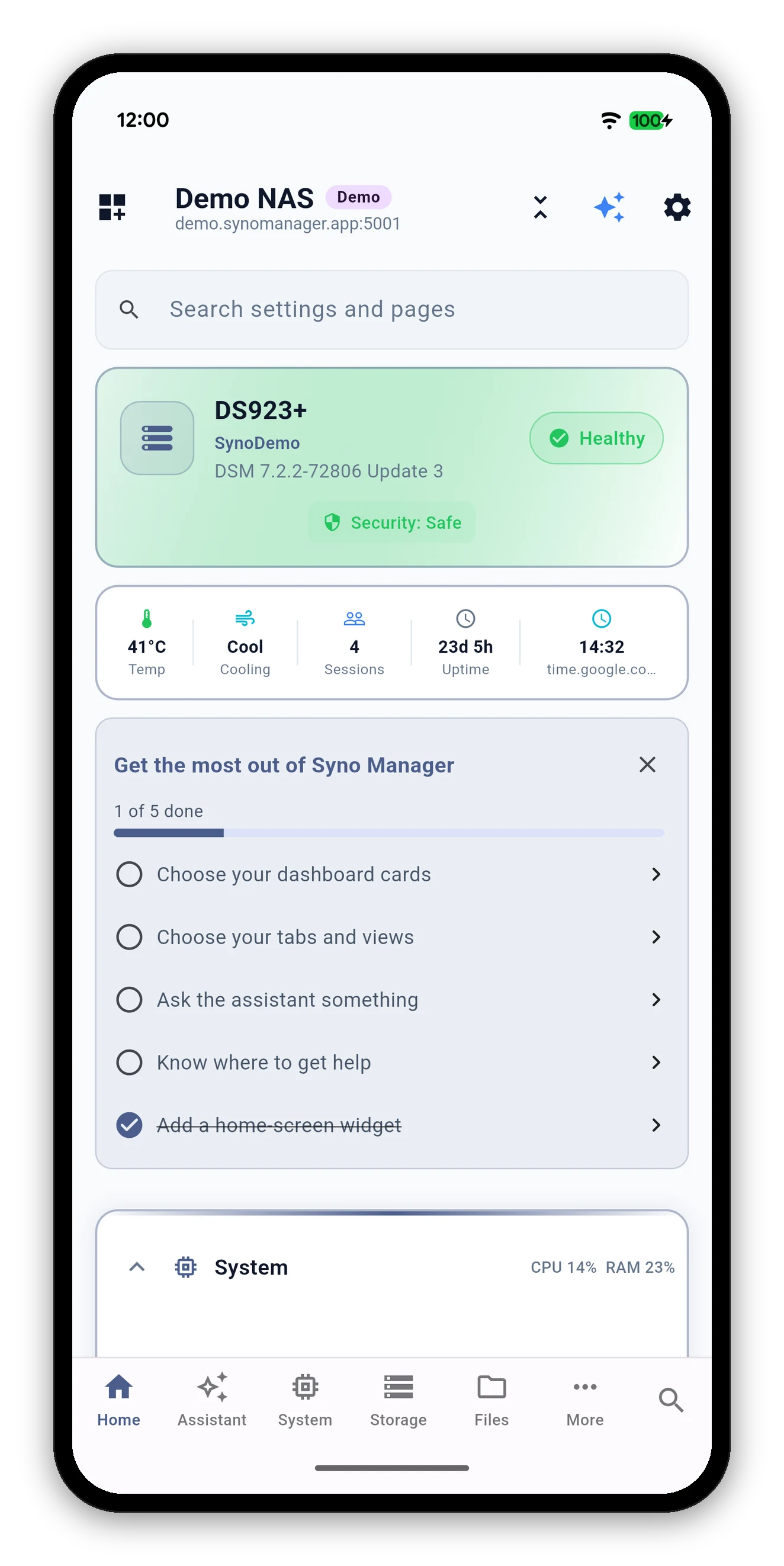
Home screenTap the Search settings and pages box at the top of the dashboard.
Tab barTap the search icon at the right end of the bottom bar, from any tab.
The Home screen with the search box at the top
Same search either way. The tab bar icon is there so you never have to go back to Home first.
What it finds

Every setting, every tab view

Search covers the app's settings and every view inside every tab. Each result shows where it lives, so Restore reads Backup & Restore underneath.
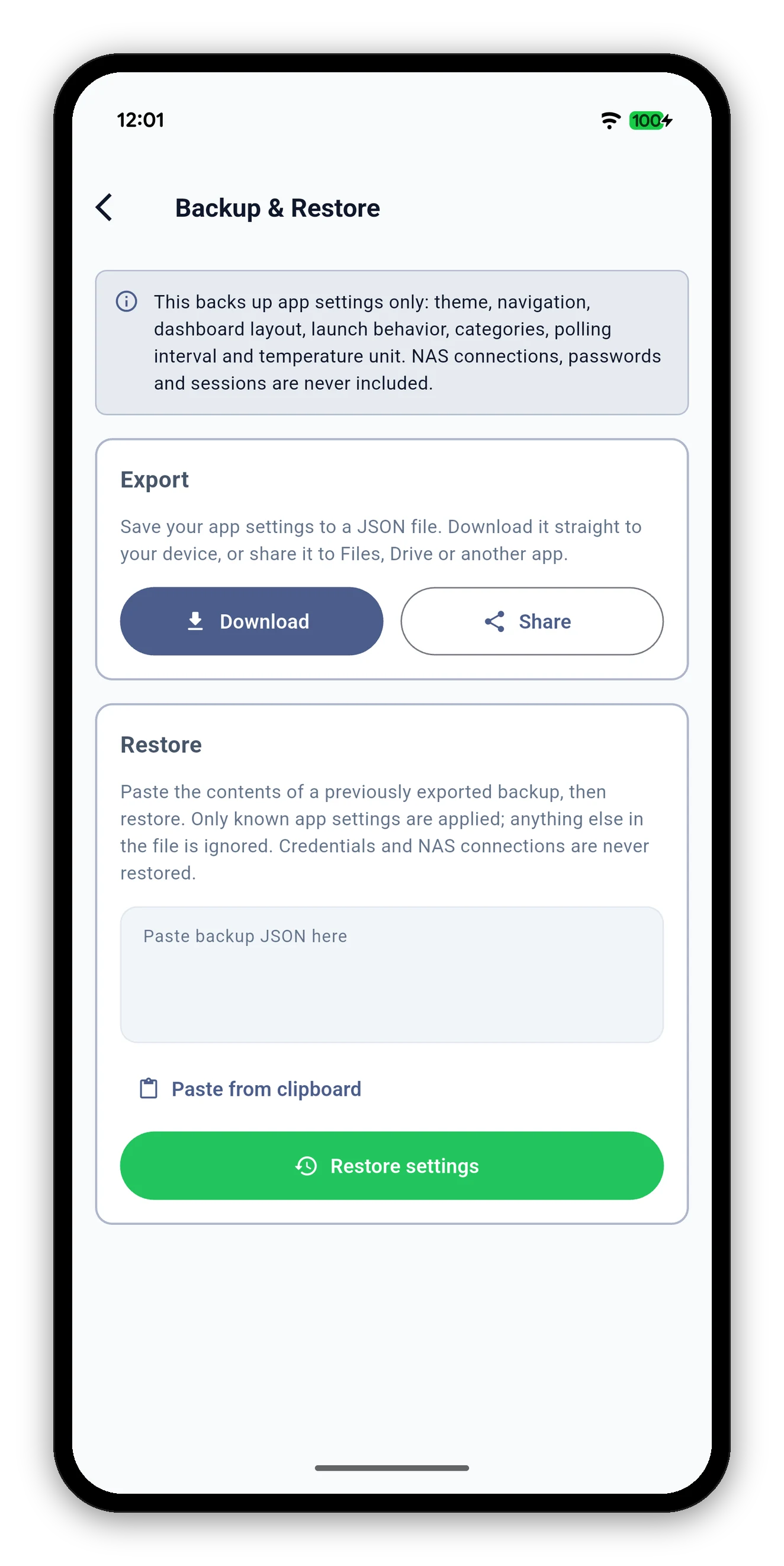
The Backup and Restore page that search opened
Typos

One slip is forgiven

A wrong letter, a missing letter, an extra letter or two swapped letters still finds the right thing.

You typeIt finds
bakcupBackup
bakupBackup
volummeVolume
dokcerDocker
Short words are exact. Typo forgiveness starts at four letters, and it is off for scripts written without spaces, so a near miss is never guessed at.
Locked and missing

Search follows your layout and your NAS

Common questions

Search FAQ

Where do I find search?
The search box at the top of Home, and the search icon at the right end of the bottom tab bar. Both open the same search.
Does it work in my own language?
Yes. It matches the words the app shows in your language and it also understands English, so you can type either.
What if I make a typo?
One slip is forgiven: a wrong, missing, extra or swapped letter. Typing bakcup still finds Backup. Very short words are matched exactly.
Why does a result show as locked?
You hid that view in Customize views. It is still listed, marked locked. Turn it back on in the tab's Customize views and it opens like any other.
Why can I not find a feature my NAS does not have?
Search only lists what your NAS offers. A view your NAS lacks stays out of the results instead of leading you to an empty page.

Next: make the app yours

Reorder cards, choose your tabs and hide the views you never open.
Customizing →   Back to the guide