Five sub-views: live Network throughput, Connections with auto-block, Services you can toggle, VPN profiles, and DDNS with your public address.
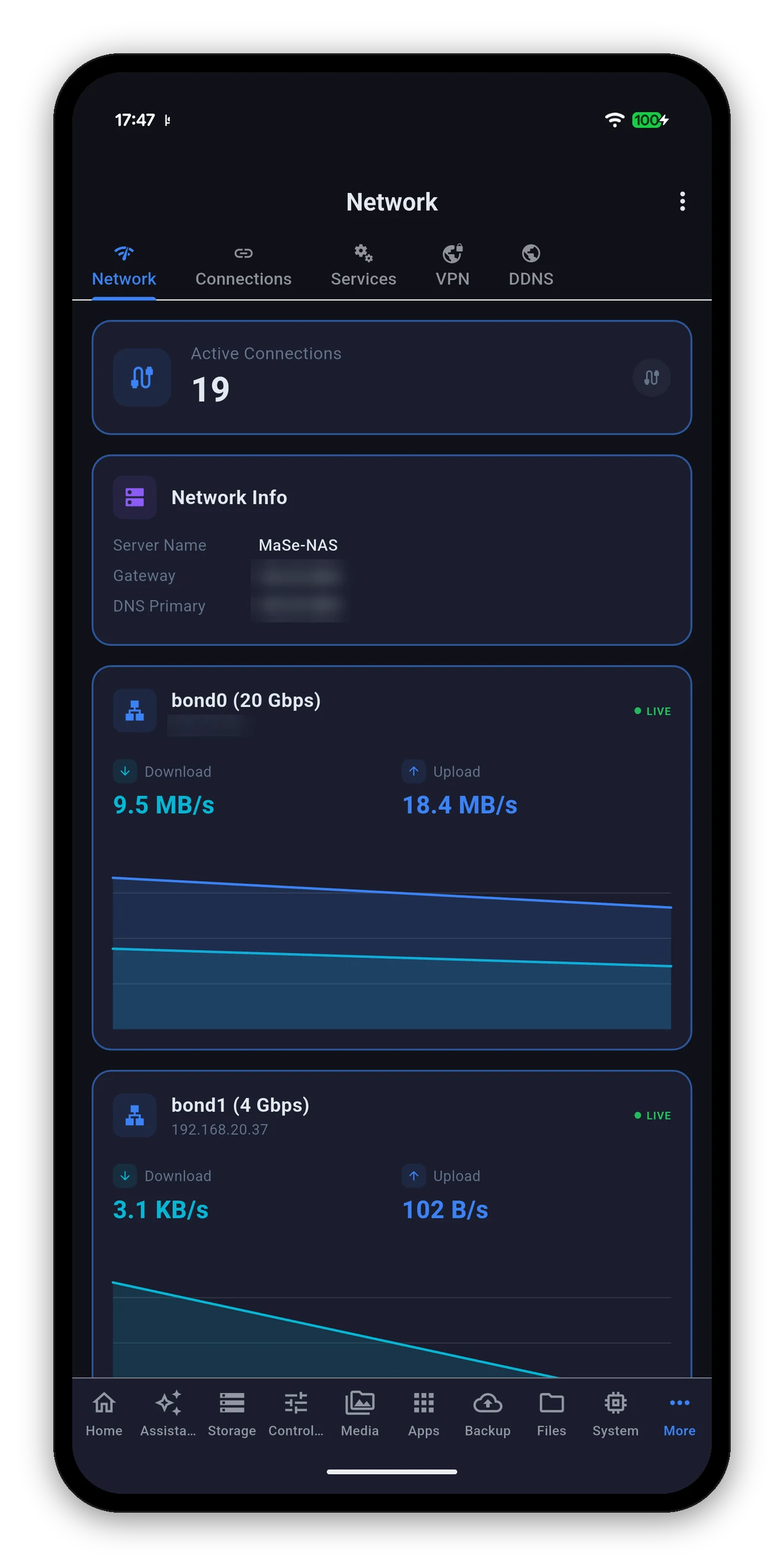
Every interface the NAS has gets its own card - and that includes bonds and Open vSwitch interfaces, which many tools skip.
| Shown | Meaning |
|---|---|
| Interface name and speed | The name DSM uses and its negotiated speed - bond0 (20 Gbps) for a two-port aggregate, for example. |
| Address | The IP the interface currently holds. |
| LIVE indicator | Green while the figures are updating. |
| Download / Upload | Current throughput, each with a rolling chart underneath so a burst is distinguishable from sustained traffic. |
| Network Info | Server name, gateway and primary DNS - the three values you want when something on the network is not resolving. |
| Active Connections | A count, with a way into the detail. |
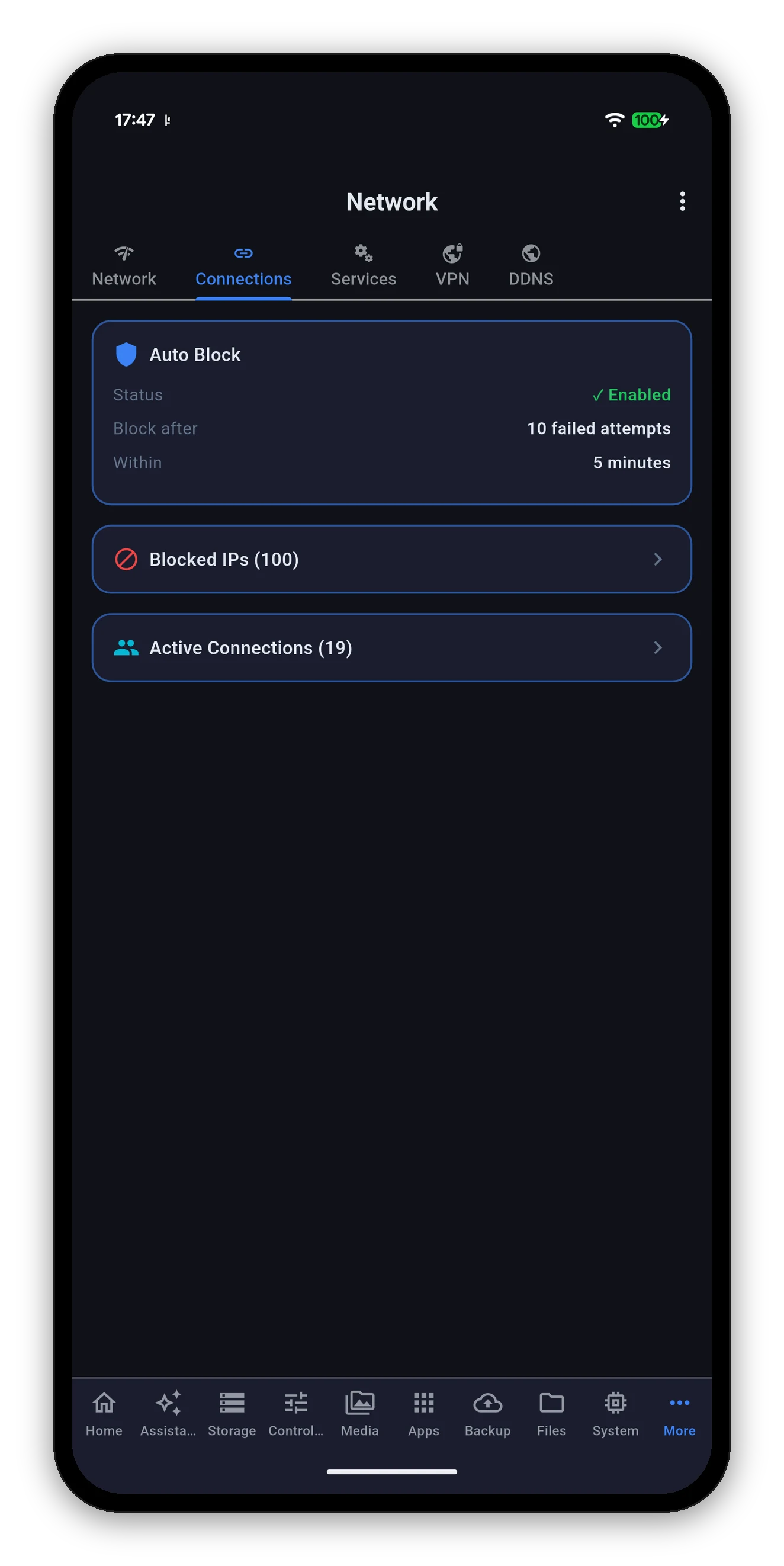
Three things, in the order you usually want them:
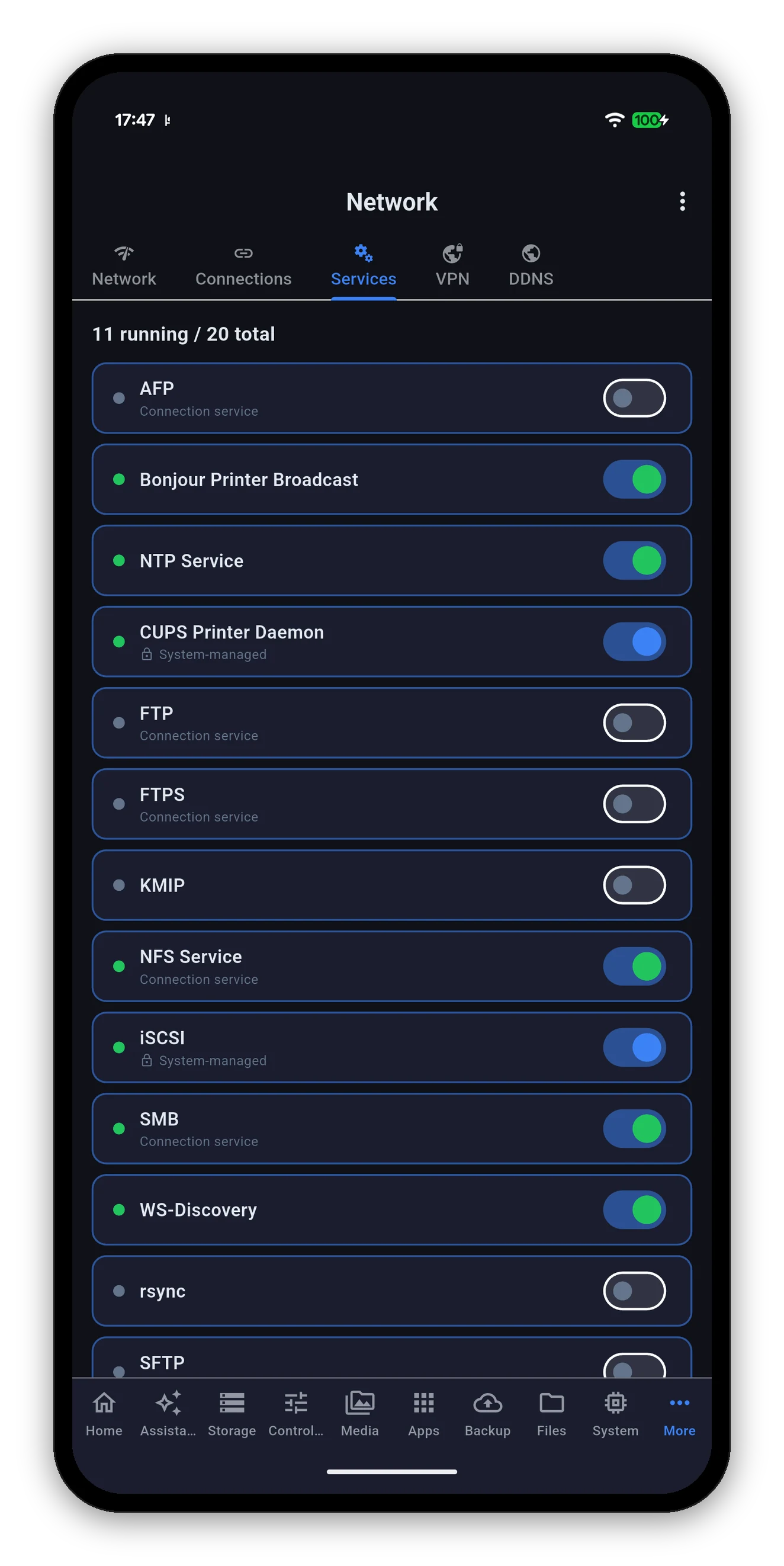
A count at the top - running out of total - then every service DSM exposes, each with a state dot and a switch.
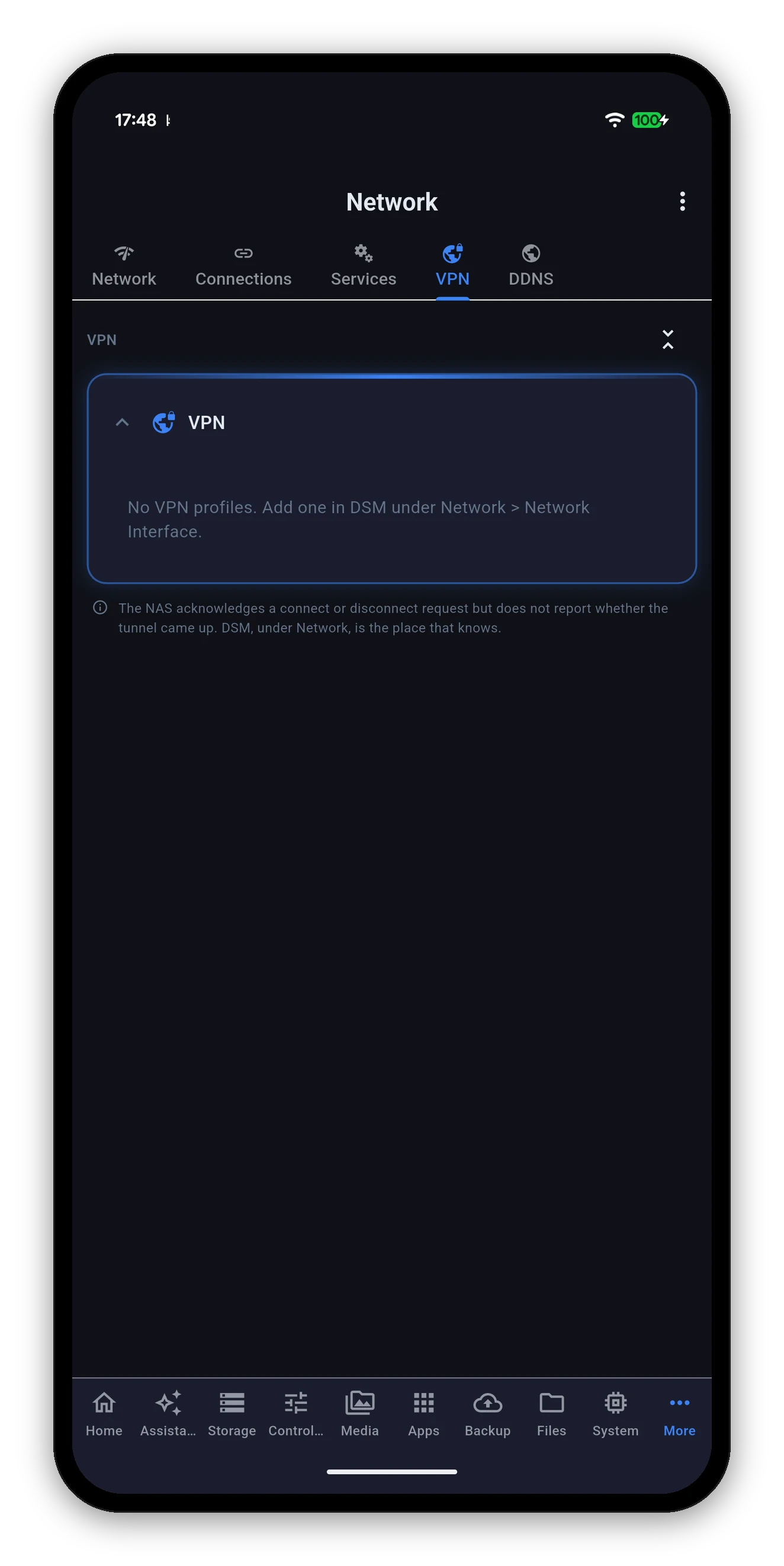
The VPN sub-view lists the VPN client profiles configured on your NAS - the connections it makes out to somewhere else - and lets you ask it to connect or disconnect one.
With no profiles set up, the screen says so and tells you where to add one: DSM, under Network › Network Interface.
One card, two independent halves:
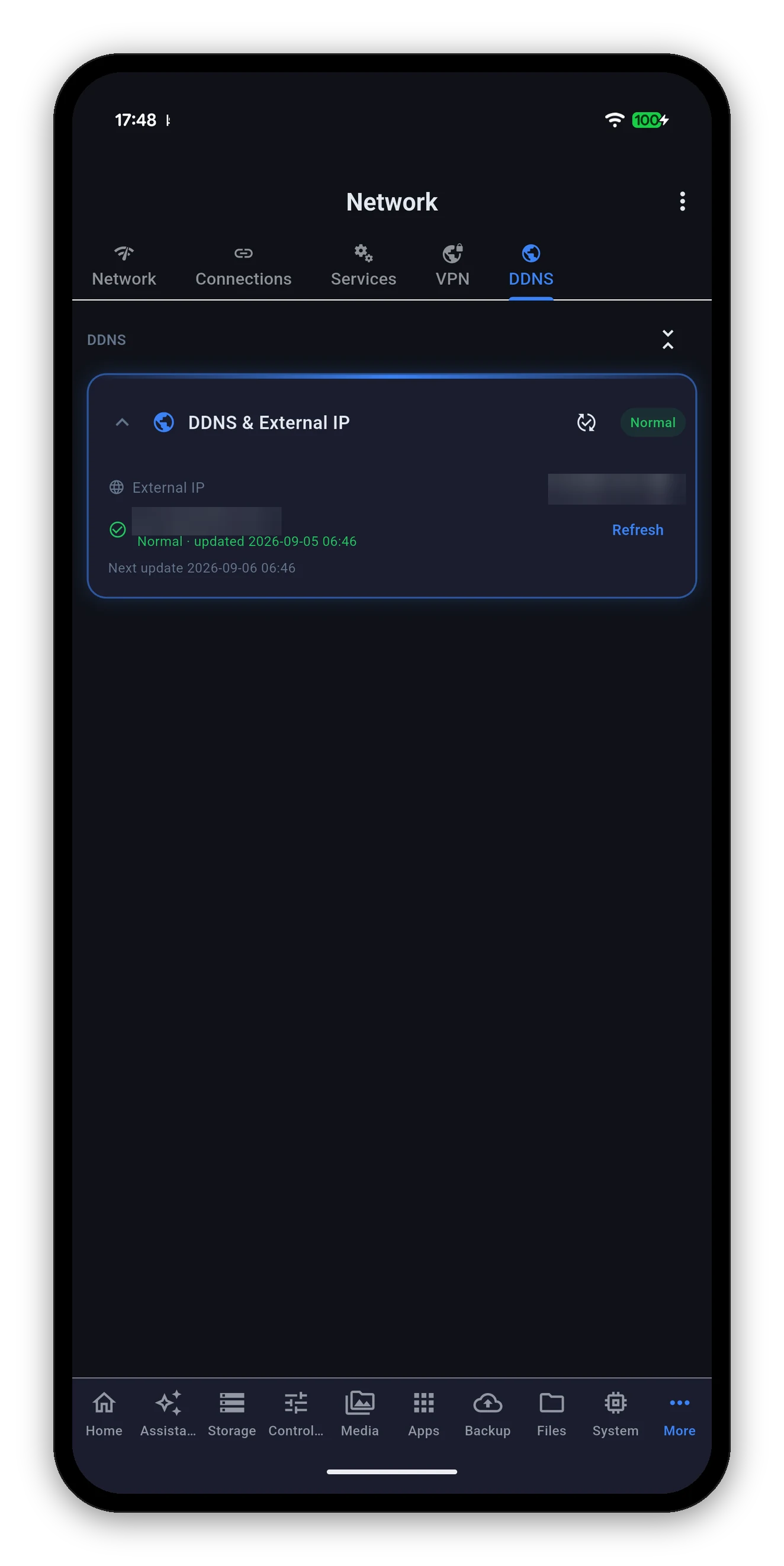
The address and hostname in this screenshot are blurred - they are a real NAS's.
File Station, shared folders, notes, documents and contacts.
 Syno Manager