HomeUser Guide › Download Station
Download Station

Send it to the NAS, not the phone

Paste a link or a magnet, or pick a .torrent, and the NAS does the downloading. Watch progress, pause and resume, and change the settings it is actually configured with.
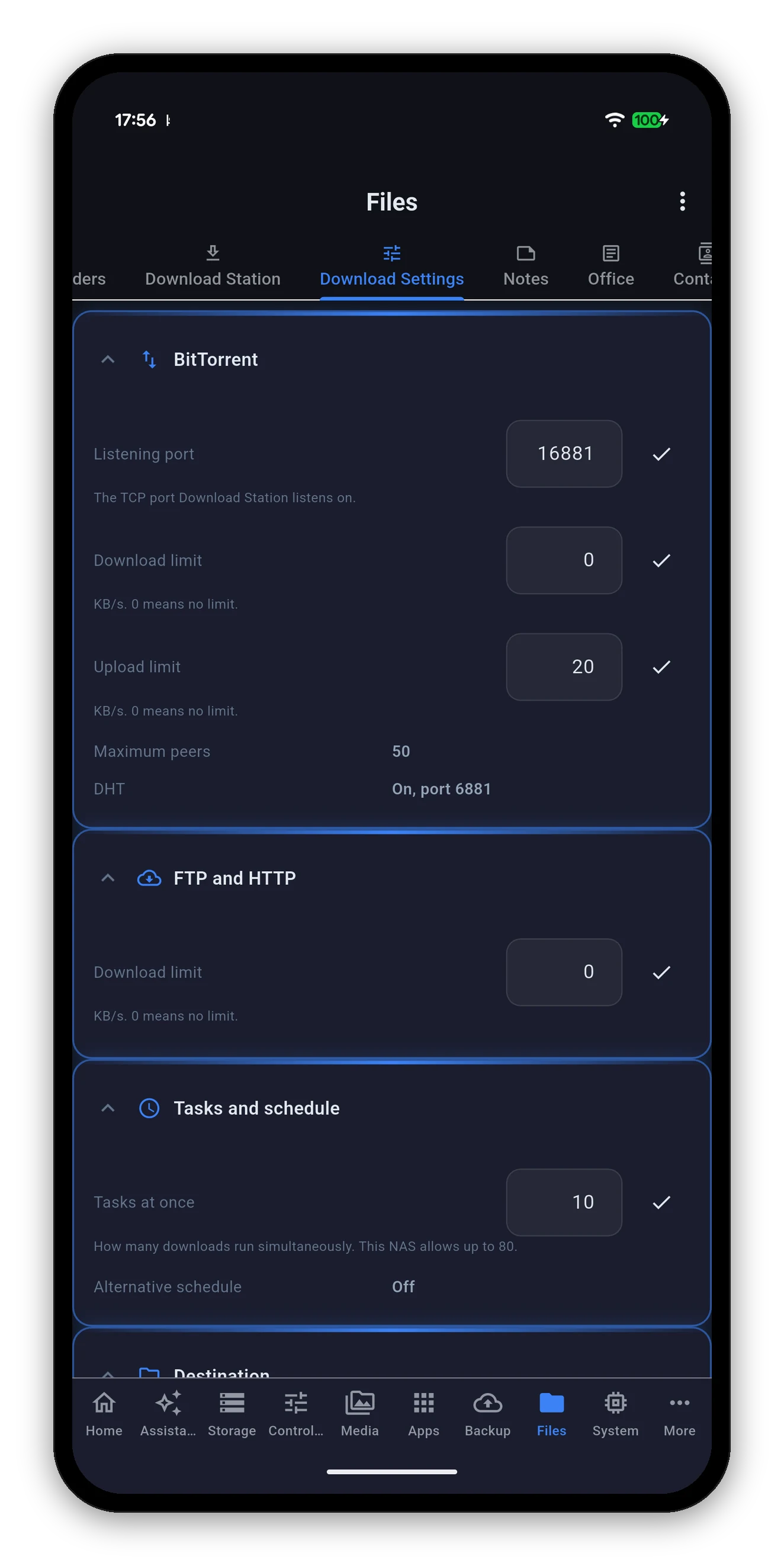
Download Station settings read from the NAS
Download Station

What is running

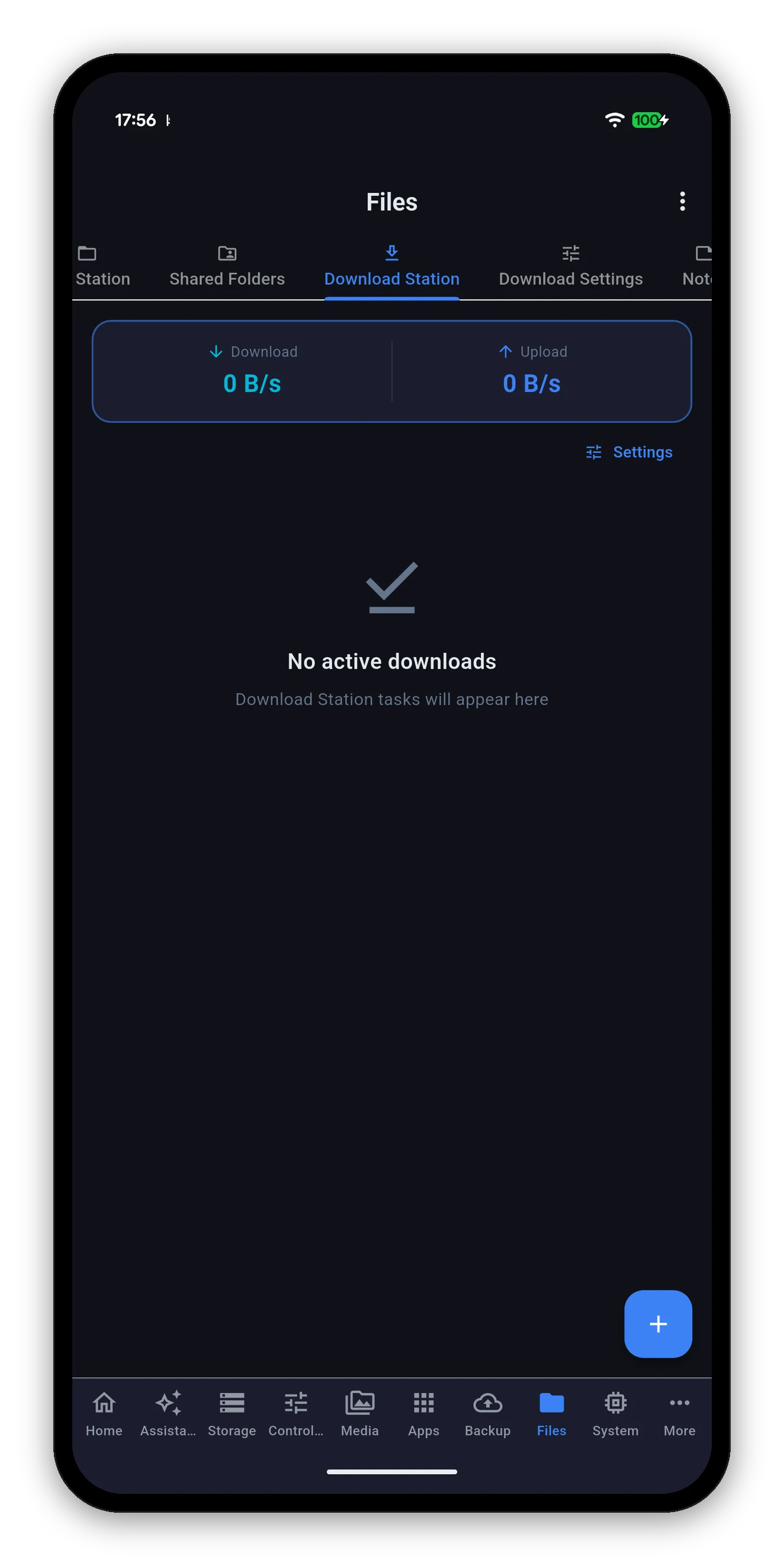
A speed header at the top - total download and upload across every task - then the tasks themselves.
  • Each task shows its name, its state, a progress bar, its current speed and an estimated time remaining.
  • Pause, resume or delete any task.
  • Nothing running says so - "No active downloads", rather than an empty box you have to interpret.
  • Settings is one tap from the header.
  • Both API generations work. Download Station has had two API versions; the app speaks whichever your NAS offers.
Download Station with the speed header and no active downloads
Adding

Three ways in

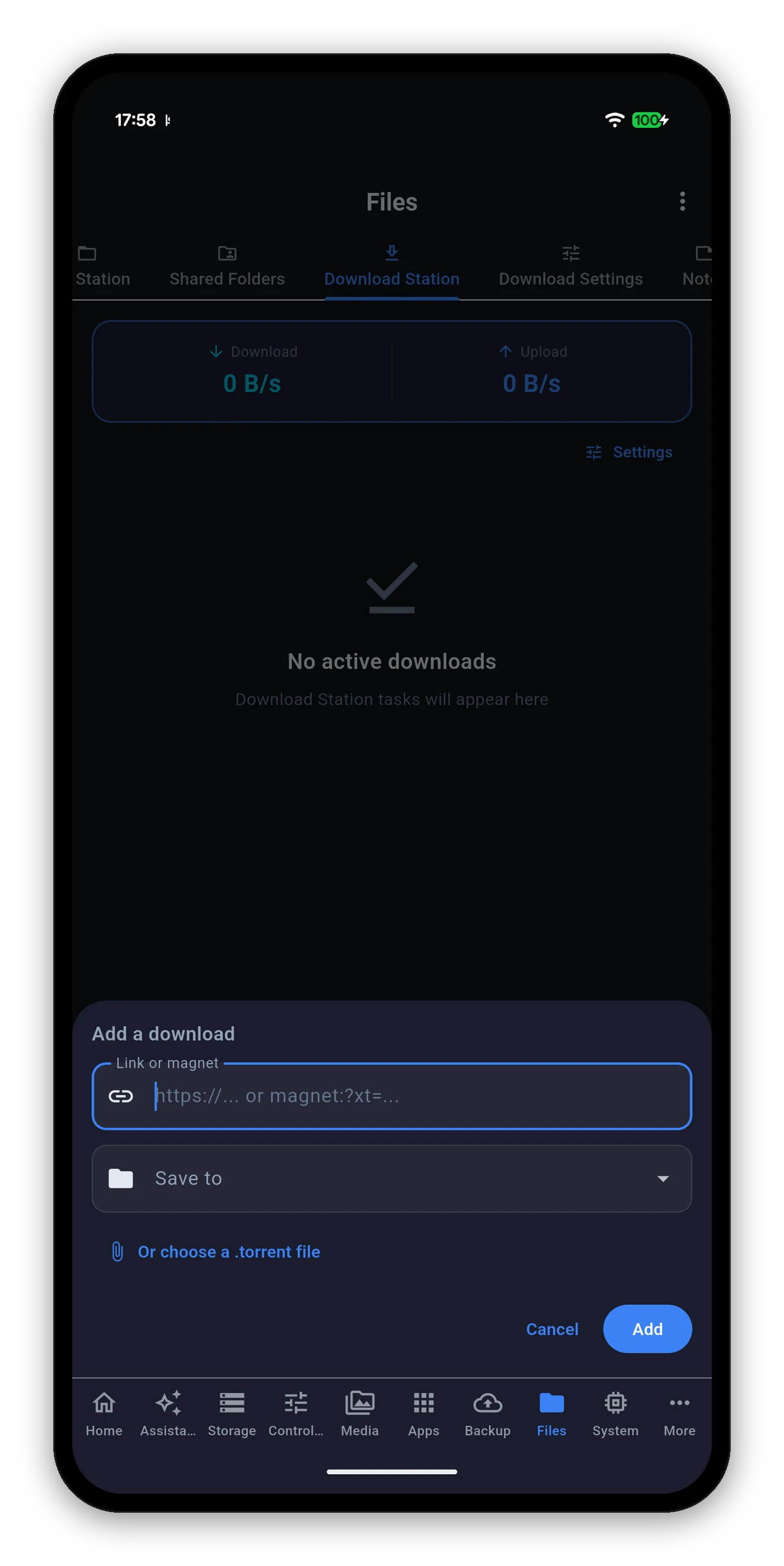
The Add a download sheet with a link field, a destination picker and a torrent file option

Tap + at the bottom right.

  1. Paste a link or a magnet. An https:// URL or a magnet:?xt= link both go in the same field.
  2. Or choose a .torrent file from the device, which opens the file picker.
  3. Pick where it saves with Save to, or leave it and Download Station uses its own default folder.
  4. Add. The task appears in the list.
The phone is only the remote control. The file is fetched by the NAS over its own connection, so you can close the app, leave the house, and it carries on.
Download Settings

Every setting, read from your NAS

Its own sub-view, grouped the way Download Station groups them. Editable values carry a tick to confirm the change; read-only ones are shown as facts.

GroupSettingWhat it does
BitTorrentListening portThe TCP port Download Station listens on. Editable.
Download limitIn KB/s. 0 means no limit. Editable.
Upload limitIn KB/s. 0 means no limit. Editable.
Maximum peersHow many peers a torrent may connect to.
DHTWhether the distributed hash table is on, and on which port.
FTP and HTTPDownload limitA separate cap for plain HTTP and FTP downloads. 0 means no limit. Editable.
Tasks and scheduleTasks at onceHow many downloads run simultaneously - and the app tells you the maximum your NAS allows, so you are not guessing at the ceiling. Editable.
Alternative scheduleWhether a different speed schedule is in force at certain hours.
DestinationDefault folderWhere downloads land when a task does not name a folder. Shown as Not set when there is none, rather than blank.
Runs onWhich volume the Download Station package itself is installed on.
eMuleWhether the eMule service is enabled.
Every change is confirmed by reading it back. The app writes your value, then re-reads the setting from the NAS. If the NAS quietly clamped or refused it, you are told - instead of the number you typed sitting there looking as though it took.
A small thing that matters

Why an unread section is named, not zeroed

Only the settings your NAS actually reported are shown. A section the app could not read is named as unread rather than drawn as zero.

That is not pedantry. Here, 0 means no limit - so a failed read rendered as 0 would tell you your downloads are uncapped when the truth is that nobody knows. A value that could mean two things is worth naming as unknown, and this screen names it.

Not there?

If the Download Station tab is missing

  1. Check the package is installed. Download Station is not part of DSM - it comes from Package Center. You can install it from this app.
  2. Refresh the app's view of your NAS. The capability list is read on connect, so a package installed since then has no tab yet. Pull to refresh, or reopen the app.
  3. Check it is not hidden. The overflow menu on the Files tab has Customize views, where a sub-view can be switched off.
Download Station needs Python2 on most DSM 7 versions, and Package Center installs it for you as a dependency when you install the package.
Common questions

Download Station FAQ

Can I add a torrent from my phone?
Yes, three ways: paste a URL, paste a magnet link, or pick a .torrent file from the device. You can also choose which folder it saves to before you add it.
Can I change Download Station's settings from the app?
Yes - the BitTorrent listening port, download and upload speed caps, maximum peers, how many tasks run at once, and the destination folder. Every change is read back from the NAS afterwards, so a value the NAS refused is reported as refused.
What does a download limit of 0 mean?
No limit. That is Download Station's own convention, and it is why the app never shows a section it could not read as zero - a missing reading dressed up as zero would be a different and wrong statement.
Why is the Download Station tab missing?
Because the package is not installed on that NAS. Install Download Station from Package Center, then pull to refresh or reopen the app, and the tab appears.
Does the download continue if I close the app?
Yes. The NAS does the downloading over its own connection. The phone is only the remote control.

Next: Apps

Package Center, Docker, Compose projects and virtual machines.
Packages, Docker & VMs →   Back to the guide